Microsoft Intune

This article provides step-by-step instructions to implement the App Catalog using Microsoft Intune.

Last updated 5 days ago

Requirements

  • At least an Intune Administrator role

Configuration Profile

  • A Configuration Profile is needed to activate and configure the App Catalog. There are two options:

    • Basic: Go to the App Catalog Customer Portal to get a Configuration Profile to get you started right away with basic settings. This profile includes the required Supporting Configuration Profiles containing a Notifications payload, a Managed Login Item payload and PPPC

    • Custom: Read the documentation to create a custom configuration profile to meet your requirements: Configuration Profile

Basic

When you downloaded the Basic profile, continue with the following steps:

  • Login at intune.microsoft.com and go to Devices -> macOS -> Configuration profiles

  • Click Create -> New Policy

  • Choose Templates as Profile type

  • Select Custom and click Create

  • Choose a name such as App Catalog Configuration

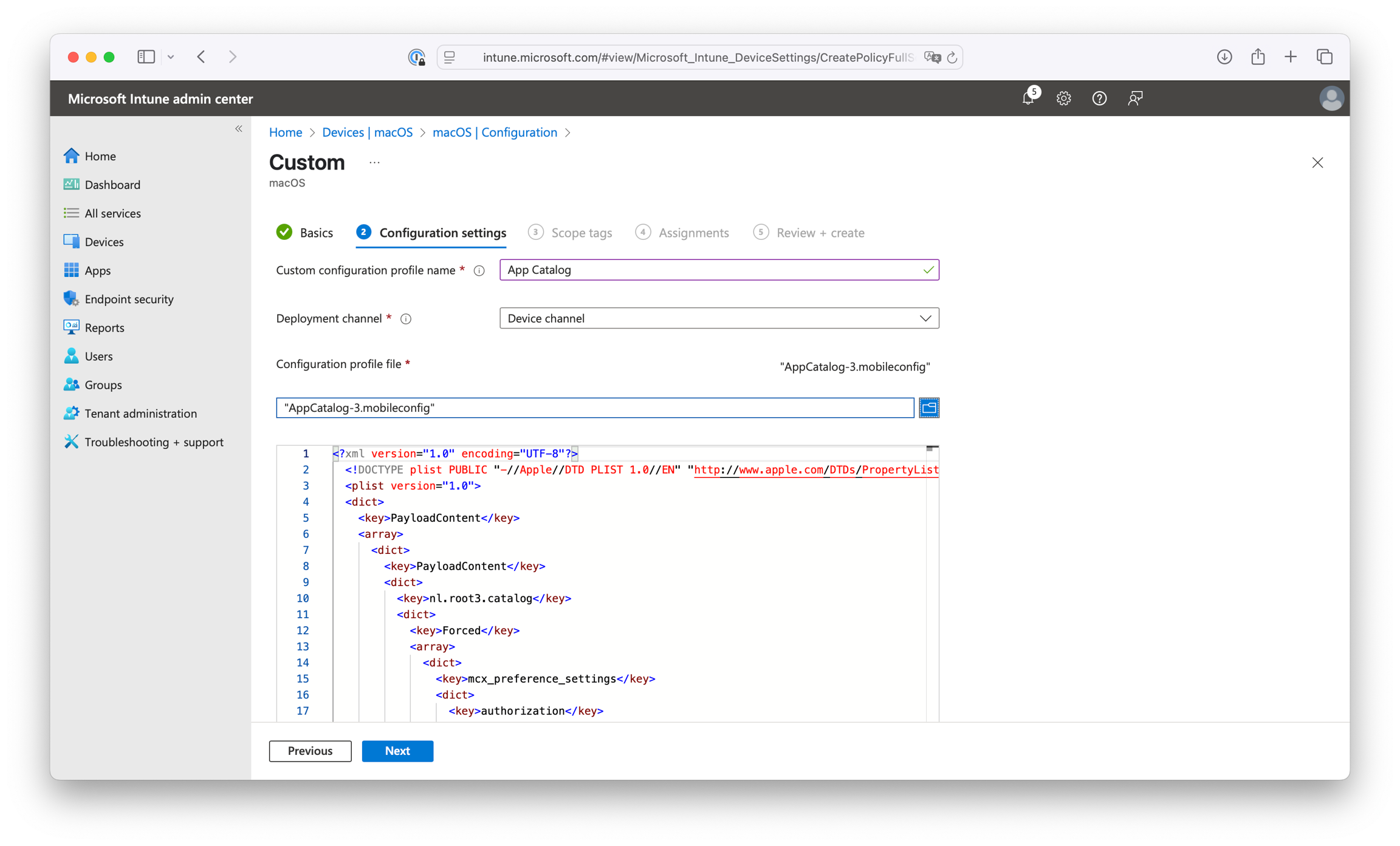
  • Choose a Custom configuration profile name such as App Catalog Configuration or choose something different to present to users in System Settings.

  • Select the .mobileconfig file containing your Configuration Profile

  • Click Next, assign the users or devices and click Add

  • Continue to Installing Apps

This profile includes the required Notifications payload, Managed Login Item payload and PPPC payload.

Custom

When you would like to customize the App Catalog experience and create your custom Configuration Profile, continue with the following steps:

  • Create your configuration using Configuration Profile and format this as a property list without any XML headers and just the key/values, for example:

Example
<key>authorization</key> <string>REDACTED</string> <key>UpdateInterval</key> <integer>1</integer> <key>EnabledApps</key> <array> <dict> <key>BundleID</key> <string>nl.root3.support</string> <key>Category</key> <string>Utilities</string> </dict> <dict> <key>BundleID</key> <string>corp.sap.privileges</string> <key>Category</key> <string>Security</string> </dict> <dict> <key>BundleID</key> <string>com.google.Chrome</string> <key>Category</key> <string>Browsers</string> </dict> <dict> <key>BundleID</key> <string>com.microsoft.edgemac</string> <key>Category</key> <string>Browsers</string> </dict> </array>
  • Login at intune.microsoft.com and go to Devices -> macOS -> Configuration profiles

  • Click Create -> New Policy

  • Choose Templates as Profile type

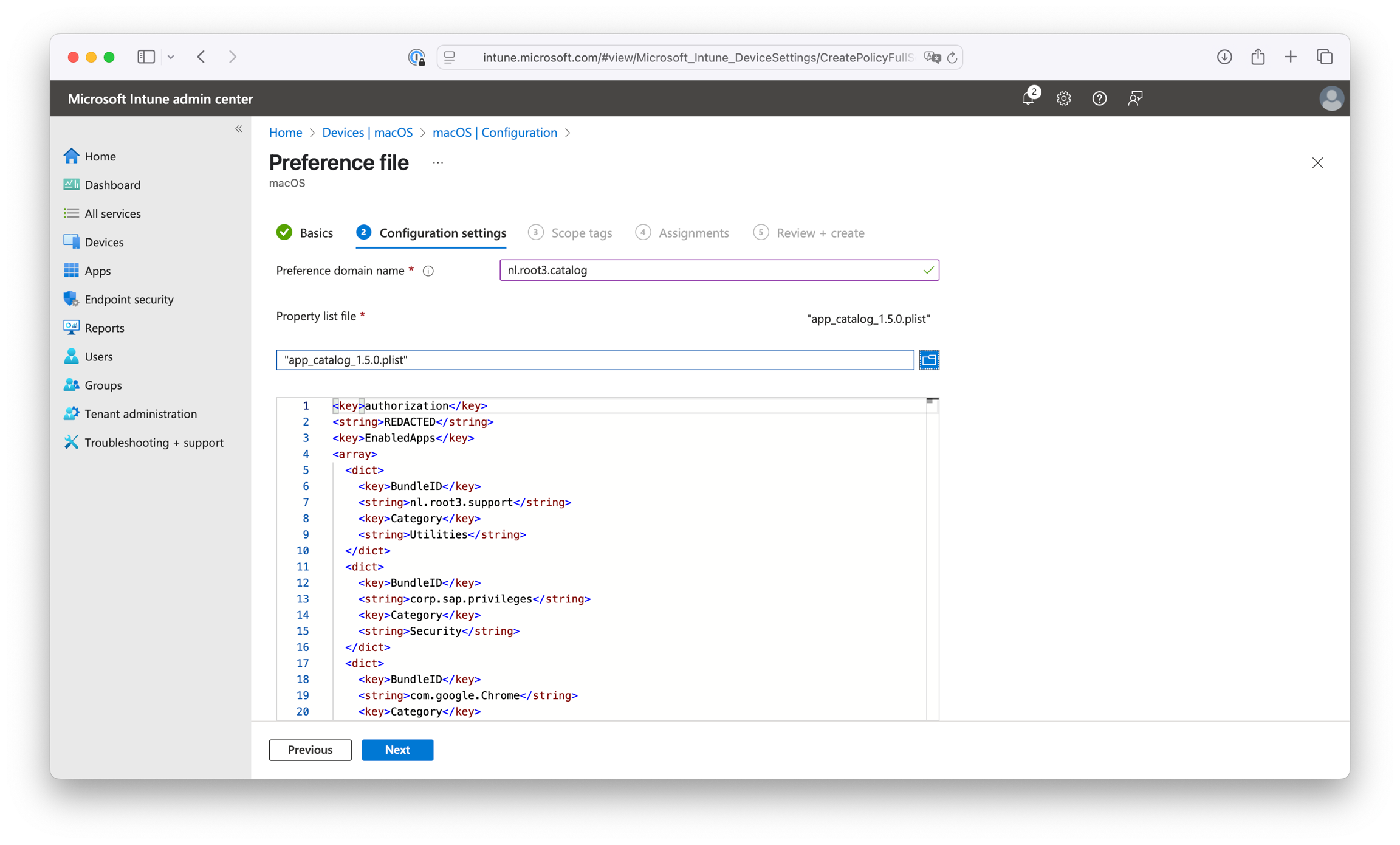
  • Select Preference file and click Create

  • Choose a name such as App Catalog Configuration

  • Set the Preference domain name to: nl.root3.catalog

  • Select the .plist file containing your configuration

  • Click Next, assign the users or devices and click Add

Supporting Configuration Profiles

To fully enable the App Catalog, some additional profiles are needed such as a Notifications payload, a Managed Login Item payload and PPPC.

Below is a JSON policy for the Intune Settings Catalog, containing the Notifications payload, Managed Login Item payload and PPPC payload which you can import directly into Intune:

macOS - App Catalog_Supporting_Profiles.json

11.8 KBβ€’ Text

  • Go to Devices -> macOS -> Configuration profiles

  • Click Create -> New Policy

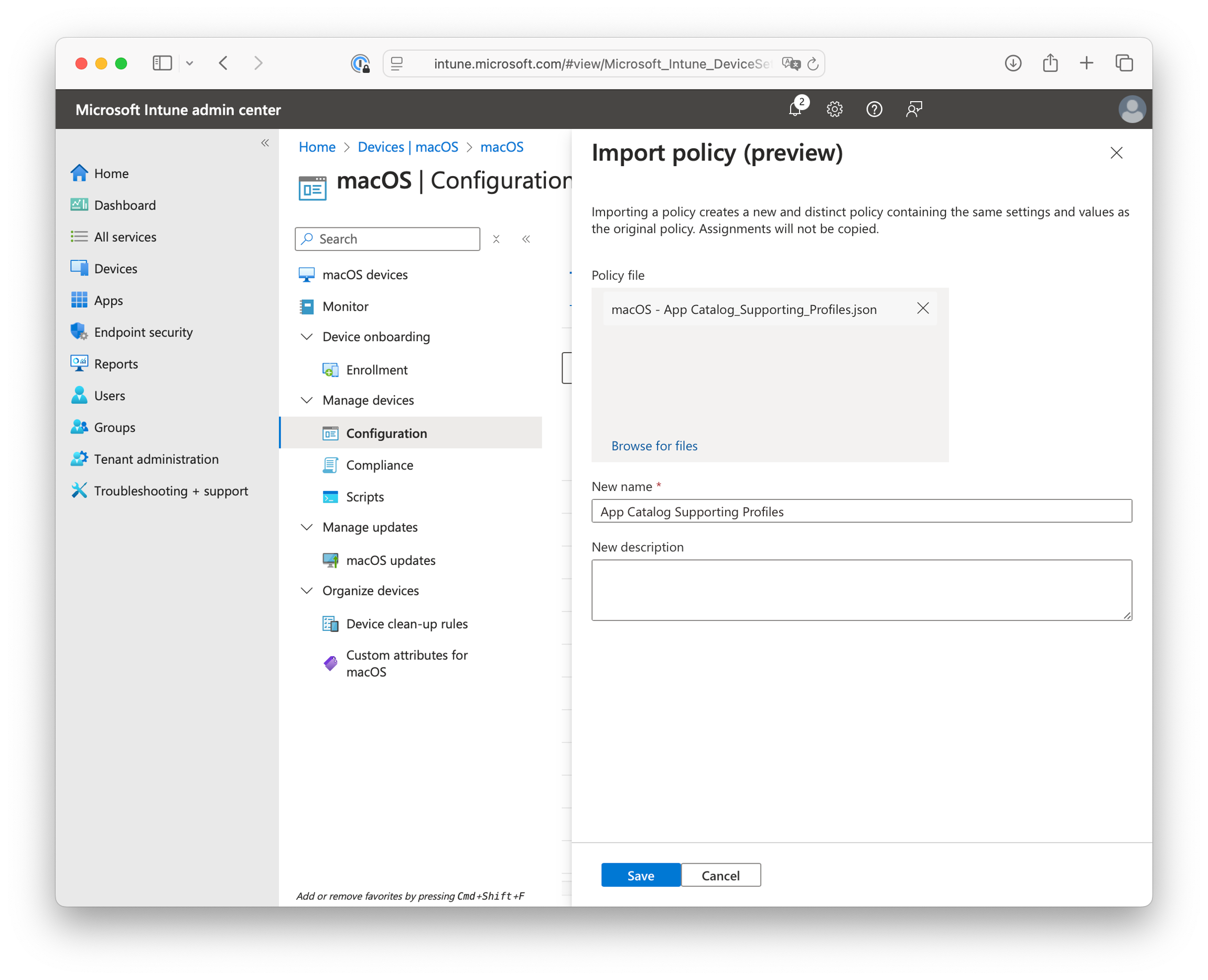
  • Choose Import Policy

  • Select the downloaded JSON file

  • Choose a name such as App Catalog Supporting Profiles

  • Click Save

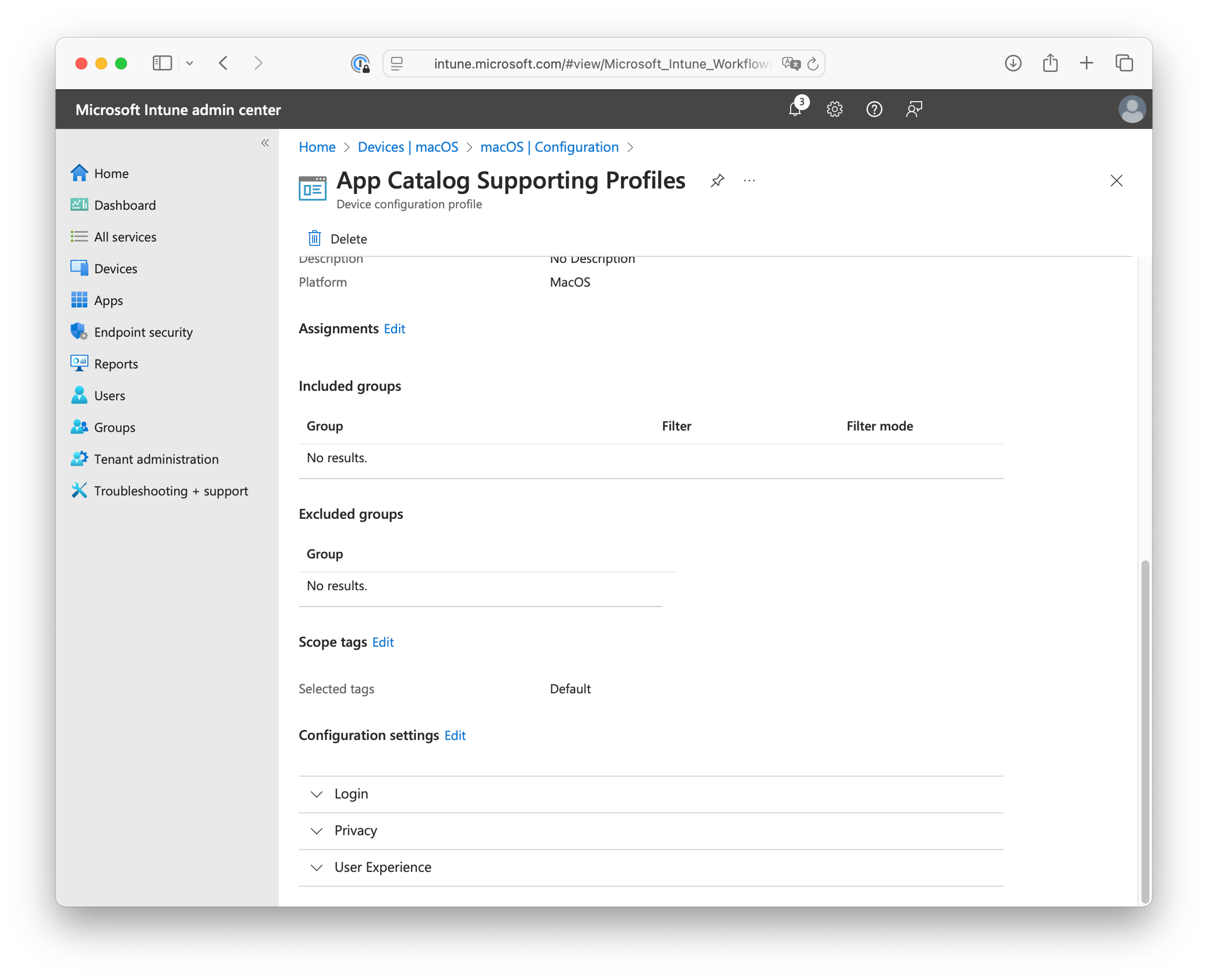
  • Click View Policy to review or edit the settings, for example if you want to change the Notification behavior (temporary or persistent)

  • Click Edit next to Assignments

  • Assign users or devices and click Review + save

Automatically installing apps or make available in Company Portal

To install apps, the App Catalog needs to be installed and called with the Bundle Identifier as described in Installing Apps and needs to be done in a small script or package with postinstall script. Microsoft Intune does not support the use of variables in Shell Scripts and therefore a separate script for every app you want to install is needed. Follow these steps to create and add an app installation script or package:

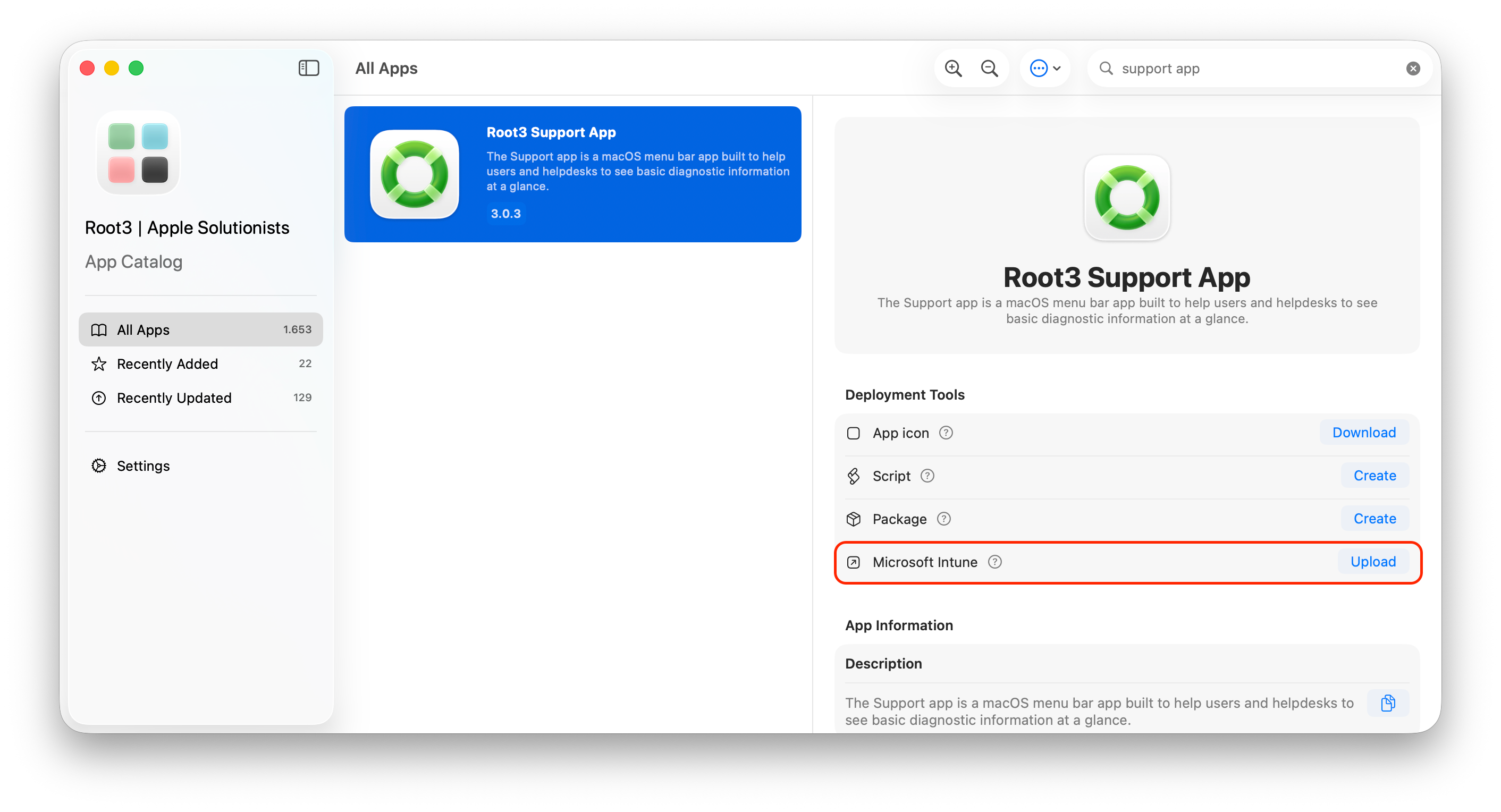
Catalog App on macOS in Admin Mode contains Deployment Tools which let the administrator download these scripts, packages automatically or even uploading directly to Intune.

Upload apps directly to Intune (Admin Mode)

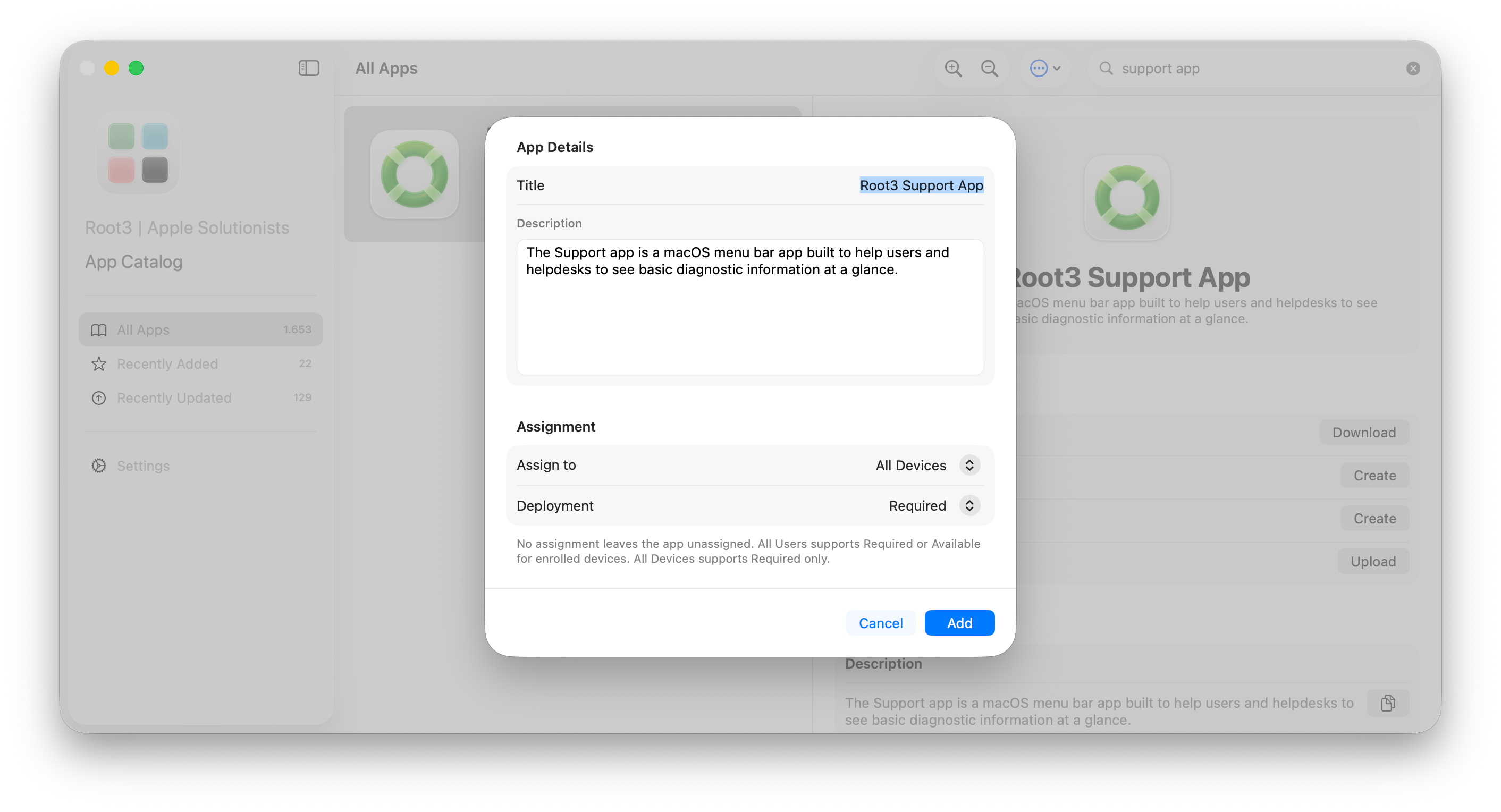
Catalog App in Admin Mode can upload an app as a PKG straight to your Intune tenant via the Microsoft Graph API, no need to download a package and create the app in Intune yourself.

What gets uploaded: the PKG is not the application itself. It's a small installer package that runs the Catalog Agent in a post-install script, which then downloads and installs the actual app on the device. This is the same mechanism as the Package deployment tool, so the app stays up to date and is sourced from App Catalog rather than bundled into a static package.

Requirements

  • An administrator with at least the Intune Administrator role

  • One-time admin consent for the App Catalog (Admin Mode) enterprise application (see below)

First-time setup and grant admin consent

Catalog App's Intune upload authenticates via OAuth 2.0 / OIDC with PKCE as a verified multi-tenant enterprise application (App Catalog (Admin Mode), published by Root3). It uses delegated permissions on behalf of the signed-in admin, not app-only access, requests only DeviceManagementApps.ReadWrite.All (plus sign-in basics), stores tokens in the macOS Keychain, and is fully revocable under Entra ID β†’ Enterprise applications

The first time you use the upload button, an administrator signs in with their work/school account and grants consent once. You don't need to register anything in Entra ID or supply a client/tenant ID, sign-in is automatic to your own tenant.

After consent is granted, select an app in Admin Mode and choose Upload to Intune. The package is uploaded to your tenant and appears under Devices β†’ macOS β†’ macOS apps. On install, its post-install script invokes the Catalog Agent to install the app.
Package

This is a PKG installer that executes the Catalog Agent in a post-install script to install the application. This option is required for Microsoft Intune as scripts cannot be put in the Company Portal app.

Manually

  • Copy the app Bundle Identifier from https://portal.appcatalog.cloud/catalog

  • Create a small script as shown below, replace BUNDLE_IDENTIFIER with the app Bundle Identifier and save it as a .zsh file. This script will also take care of the installation of the App Catalog if not already installed:

Example
#!/bin/zsh --no-rcs # Install App Catalog when not installed yet if [[ ! -f "/usr/local/bin/catalog" ]]; then curl -sSL https://cdn.appcatalog.cloud/install_app_catalog.zsh | zsh fi # Install app /usr/local/bin/catalog install "BUNDLE_IDENTIFIER"
  • Below is an example script for installing Google Chrome:

install_google_chrome.zsh

262 bytes

  • Go to Devices -> macOS -> Shell scripts

  • Click Add

  • Choose a name such as Install Google Chrome

  • Upload the script and make sure Run script as signed-in user is set to No

  • Click Next, assign the users or devices and click Add

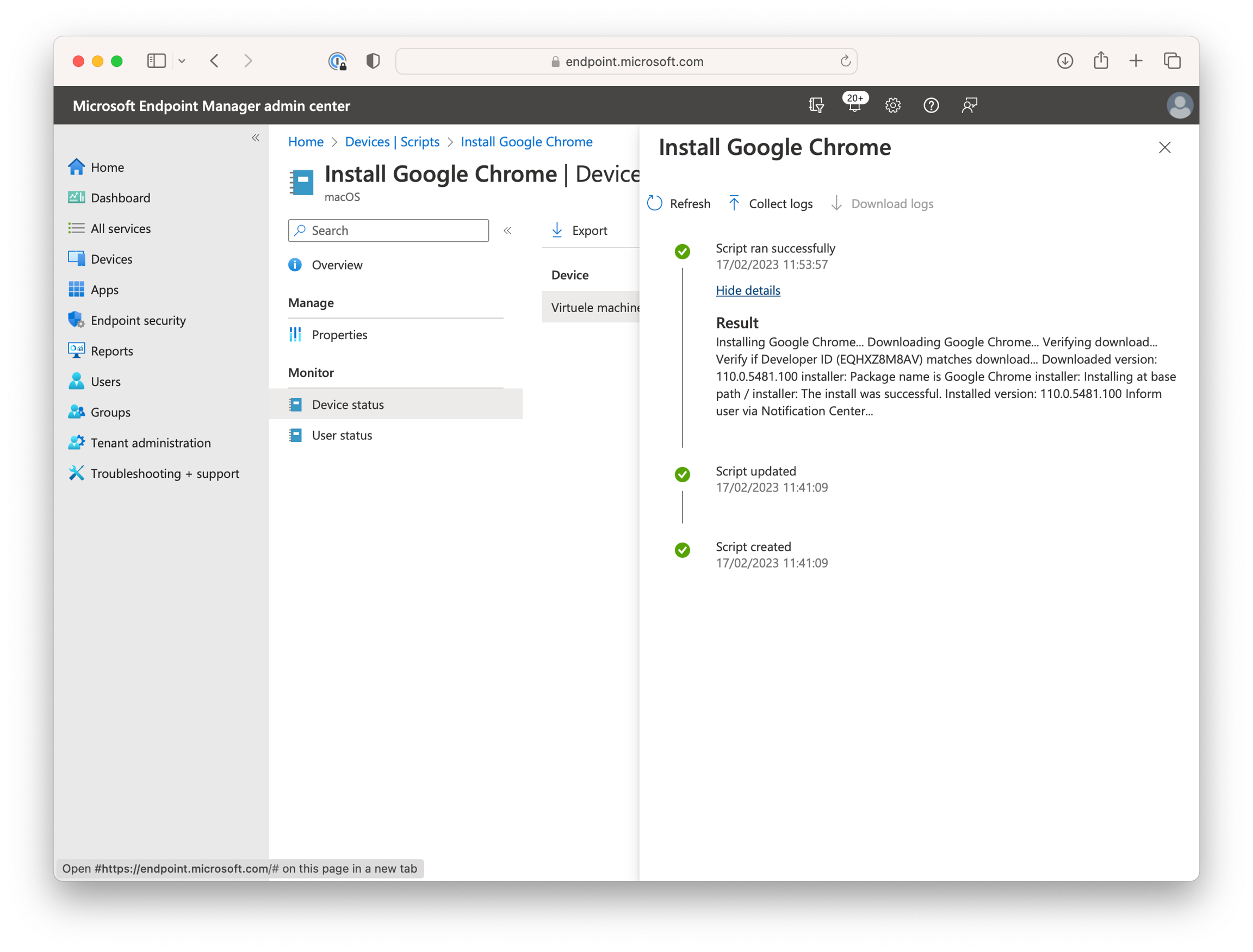
  • The app will now be installed on the next check-in. To verify, logs can be checked by selecting the script -> Device status as shown below:

πŸŽ‰ That's it, you have successfully configured the App Catalog for Microsoft Intune!